Showing posts with label Windows. Show all posts

Monday

EaseUS Review - Best Free Data Recovery software for Windows PC

Have you lost your files due to system crash? Or by random mistake you deleted files from your PC and you want to get or recover it back into your system? Perhaps you need to know how do I recover lost files in Windows 10, 8, or Windows 7.

Here is a great recommendation, among the many names and types available online, this is among the best recovery software you can use to get back your lost data/files for free. It works flawlessly on Windows PC with the press of one or two buttons, everything else in the software automates and fetches your lost data/files back for you.


Apart from being a Data Recovery software that works for free. EaseUS supports lots of useful and powerful features that you would surely need.

Some EasyUS FEATURES:

Below some few awesome things this software can do for you:

Recycle Bin Empty Data Recovery

You can filter scanning results by file type and selectively recover filed deleted after emptying the recycle bin.

Accidentally Deleted Files Recovery
Quickly recover data from unexpected lost caused by accidentally deletion or affected by virus attack.

RAW Partition Recovery

If your hard disk or partition suddenly becomes RAW and you cannot get to the stored data, download the best free data recovery software to regain access.

Virus Attack Recovery

Virus attacks are annoying and can make your computer not work normally. This tool can recover your data safely and quickly etc

STEPS TO RECOVER DELETED/CORRUPT FILES Successfully in Windows 10, Windows 8 and 7


Using EaseUS free recovery software, simply launch the software and pick the folder in your PC where the file or data is located or was found before it was lost.
The software does the rest of the job for you.

Recovering your data after scanning is complete is quite easy.

Once any files or data are recovered, they are displayed in a single file tree. Then click on the “Export” button to save the scanned files and complete the recovery process.


You can also preview the data you are about to recover before doing a full recovery. During the file preview, you can check the boxes next to each of the files to select the file you would like to recover and the ones you would like to leave out. The last step is selecting the location you would like to save your recovered files.

We've been using this free data
 recovery software for a few days now, I can surely tell you that it's been a lifesaver as I had been able to recover important files that are valuable to me.

Friday

Download Shadow Fight 3 for Windows 10 PC For Free

Just about 5 months ago, we leaked rumors about Shadow Fight 3 coming to both Android and Windows PC. We saw game previews of the SF3 for Windows 10 PC on Youtube, so many fans of the game had been anticipating, and not just fans but a very huge number which includes some of the 160 million users across the world.
Shadow Fight 3 will be available for Download on Windows 10 and up, the game is the sequel of the legendary Shadow Fight series, which gained an millions of audience on mobile which consisted of Android, iOS and Facebook before eventually showing up on Windows PC.

SHADOW FIGHT 3 GAME FOR WINDOWS 10 - PREVIEW


Shadow Fight 3 for Windows, Android & iOS will include features such as:
  • Three Playable Factions: Choose from either the brutal Legion, stealthy Dynasty, or deadly Heralds, each with their own unique history and fighting style.
  • Hundreds of Collectables: Complete quests and purchase booster packs to collect legendary weapons, armor, and perks.
  • Limitless Quests: Embark on the epic main story-line or explore the world of Shadow Fight 3 through daily missions, online battles, and dynamically generated quests.
  • Complete Customization: Combine weapons, skills and shadow form techniques and master your own deadly fighting style.
  • Shadow Fighting Mode: Shadows haven’t totally disappeared from the game: a special “Shadow Fighting Mode” brings them back as guest characters.
Shadow Fighting Mode

Shadow Fight 3 (SF3) - Free Download on Ocean of Games

For those looking for where to Download Shadow Fight 3 (SF3) for Windows 10 PC, it will be available for free downloads at Ocean of games website. But we will post Download links for you here soon.
Make sure you Subscribe to Our Newsletter to receive the Updates for Download Links here.

Shadow Fight 3 (SF3) Windows 10 Gameplay (Video)

Here is an Official Teaser of the game-play on Youtube:


Download the Full Files - Shadow Fight 3 (SF3) Windows 10

Some people said the Game will Not come for free, others said there will be Paid Access, however we are sure it will be up for downloads first, so we will post an Installation guide for the SF3 (Coming soon).
There are rumors the download links will be available by December, be sure to stay in touch with us (Like Us on Facebook & as we said earlier, Subscribe to Our Newsletter to receive the Updates) for the game links on your PC.

Thursday

Latest method to Manually Install Add-on in Mozilla Firefox (Windows PC)

Over the years, certain things had changed with improvements on Mozilla Firefox, and technically, this including the folders where Add-on are stored in your Windows PC (Windows 10 precisely). This new method should in both 2016 & 2017 since in October 2016 Firefox version 49.0.1 was released which is definitely not going to be the last (more version updates would still come in 2017), this had actually nullified many Addon on the browser and made it unable to be reinstalled from the Add-On Menu where various Add-ons can be downloaded.

Well, if you use an old add-on that no longer exists in the "Get More Add-on menu", and your only option is to manually install the add on here is a Step by step guide on how to go about it.


Below is How to Manually Install Add-on in your Mozilla Firefox (Windows PC) in 2016 / 2017


Mozilla Firefox Addon 2017

1. Download the Add on, after Unzipping, it will be in .XPI format

2.Now go to your Local disk and find this folder:  
C:\Program Files (x86)\Mozilla Firefox\browser\extensions


ALSO READ: Best Way To Change and use Proxy Servers/LocalHost- 127.0.0.1 for browsing On Google Chrome

3. Inside there, simply cut or copy the XPI file and paste it in that folder, it will automatically get installed after you Close and reopen the browser. And you can easily locate and activate or deactivate it from the Mozilla Add Ons in the browser Menu.

That's all, hope it worked for you.

Tuesday

How to Enable or disable Google Chrome Material Design on Windows PC

Some people might feel a need to want to change back to former design on their Chrome by disabling the recent Chrome's Material design, this post is here to show us how to go about it.
If you use Google Chrome as your major browser, you must have received an update and become aware that there's now a NEW design on the browser known as Google's MATERIAL DESIGN.

The latest version of Chrome is CHROME 53, and it's basically appearing uniquely different based on Material design from and by Google.


But, What is Material Design, on Google Chrome?

For Chrome browser, Material design means Chrome 53’s user interface is flat, and some icons have changed. For some time now, several companies, Microsoft most notably, had brought a complete visual refresh to normal classic Chrome layout via their MicroSoft Edge browser if you look very very well.
Material design on CHROME includes changes like introduction of a Dark Incognito theme, sharp edges of tabs, hamburger menu changes to 3 dots, redesigned pages for Downloads & Extensions, etc. It offers a mouse optimized layout – and the Hybrid layout offers a more spaced-out experience suitable for touch devices. The changes may not be obvious to the eye, but rest assured, they are there.

But fact remains that not everybody may like this, you and some other people may already be used to the previous look of your Chrome, use the steps below:

How to Enable or disable Google Chrome Material Design on Windows PC

To change or revert back to your original design on Chrome 53, in your address Bar type chrome://flags into the address bar.

2. After that, Press Ctrl+F, type “Material Design”, the press Enter.
3. Now, you will see a setting Material Design in the browser’s top chrome. Change it from Default to Non-Material, restart the web browser and everything should be back to normal. There’s also an option that says Material Hybrid – it is meant for touch-enabled layout.

For those who love the Material design already, perhaps you'd prefer to see it throughout the entire web browser, not just some aspects of the user interface. You can achieve that.

Still on same settings:


Below the option in YELLOW, “Material Design in the browser’s top chrome”, there’s another option known as “Material Design in the rest of the browser’s native UI”. Click Enable and it should extend the –top-chrome-md setting to secondary user interface.

More flexible features can also be likely unlocked when you go to the  chrome://flags Settings. Note however, that tampering with that it may cause issues with your Chrome browser.

Thursday

FIX - PES 2016 refused to Start on Windows 10, Crashes and other Common Errors

After moving to Windows 10 (while doing so, the operating system kept my files, I didn't lose a thing) all my programs were still working fine, except when I tried to launch my PES 2016. Initially on Windows 7, it was running perfectly before I performed the Windows OS upgrade. See Ocean Of Games for requirements or Download the game.

PES 2016 FOR PC
  • Playing PES 2016 on Windows 10, I faced Two errors at start and below were how I fixed them, including solutions to other Errors you might be facing on playing or starting the game. Don't worry, I maintain my usual culture here, keeping the steps simple as possible.

1. DLL issues - sdkencryptedappticket.dll - Not found, dll missing or corrupt errors - The game refused to start, showing a pop up with that message.
Fix: You can manually download the DLL and move it to C:\Windows\System32
or Choose DOWNLOAD SDKENCRYPTEDAPPTICKET.DLL FIXER, using internet, the software automatically installs and fix the DLL.


2. Pro Evolution Soccer (PES) 2016 refusing to start - it closes after loading a black/blank pop up.
I fixed it but before I did, this part was more tricky, I had to check on my nVidia settings, Configured GPU for the game, etc. I didn't do all that when the game worked fine before I moved to Windows 10. It wasn't necessary in this case. My Laptop had all the requirements yet the game wouldn't start.

FIX:
i.) Uninstall the game (PES 2016)
ii.) If you have an Antivirus, DISABLE IT.
Also Hit your Windows Start button, search for "Windows Defender" >> turn it Off. Now re-install the game again. It should play afterwards on your Windows 10.


Other Common PES 2016 Bugs, Errors and Fixes
There are other common errors like lagging and crashing on starting or during playing the game play.
Random crashes in Pro Evolution Soccer 2016 (PES 2016)
Pro Evolution Soccer 2016 (PES 2016) crashes on start up
Pro Evolution Soccer 2016 (PES 2016) crashes in between the game play.
Pro Evolution Soccer 2016 (PES 2016) crashes after changing the settings.

USE THESE FIXES - 

a) Update your drivers:

Many people ignore this step, if you are one of them, then you are completely wrong. Updating the drivers is compulsory for every “Latest game”. First of all.

Go to Command prompt (Windows button + R)
Now, type “DRIVERQUERY” and click enter
Now, you can see the results of drivers and the last updated dates. If they were not update since 6 months ago, then we recommend you have to update early because nVidia and AMD have released latest drivers for this game.

To update your drivers, we recommend you to use Driver Scanner.

After downloading, you need to perform a complete system scan with it.
From there, you can update the drivers by one click.

b) Try to run the game in compatibility mode select “Windows Service Pack 3”

c) Disable V-sync and triple buffering and restart the game. If it didn’t work, then revert back the changes.

d) Configure your nVidia -  If your PC uses nVidia Graphic card, go into nVidia control panel, add your game.exe and make it “use NVidia GPU” this too can resolve this issue. Also, go to NVidia control panel and check if game.exe has two instances. If at all, there are two instances, set both to use your specific GPU instead of automatic.

If any of our recommended fixes didn't work on your PES 2016 for Windows PC, you may tell us in the comment below. And if it did work, please hit the Share button.

Saturday

A Quick Guide To Download and Install Windows 10 - ISO 32 Bit & 64 Bit 2015 On Your PC For Free

Since Windows 10 was Officially launched to consumers on 29th July 2015,  it has gone viral and been rolled out to over 190 countries across the world for existing Windows users already, as well as those purchasing new PCs and tablets.

Today we will quickly show you how to grab your Own Free Copy of the Operating System Windows 10. 

Installing it is Really Easy, you won't loose your Files/Docs, everything remains intact after you Upgrade.

Before we get along, Let's quickly watch a tech preview video - Introducing Windows 10 - the best Windows yet 


And Hey! Windows 10 will Support More of the Best Amazing Gaming experience with Xbox
Check out the Windows 10 XBox App Walkthrough release on 30th July, 2015-


Now to the Main part of this post's topic, getting Windows 10 for your PC.

If your Windows 7, 8.0 or 8.0 is up to date, you should see a notification asking you to upgrade, After the upgrade is complete, you can create an ISO file from the cached upgrade files.

That ISO file can be used to install Windows on any PC, provided you have the right product key (no worry, we'll drop that in a minute). 

I’ve installed it for couple of friends with Build 10158. I really like the Start Menu and Few more features, and I think in time Windows 10 is definitely will be better, faster and smoother than windows 8 & 8.1.

If you need to install or reinstall Windows 10, you can use the tools on this post to create your own installation media using either a USB flash drive or a DVD.


How to Download Windows 10 Free - ISO 32 Bit and 64 Bit 2015

Use any of the Links below to Download any of the Windows 10 for 32 Bit and 64 Bit:

* Pro & Home x64 / 64bit : CLICK HERE

* Pro & Home x86 / 32bit: CLICK HERE

* Single Language x64 / 64bit: CLICK HERE

* Single Language x86 / 32bit: CLICK HERE

* Enterprise x64 / 64bit (Evaluation Copy): CLICK HERE

* Enterprise x86 / 32bit (Evaluation Copy): CLICK HERE

Download Windows 10 for 32 Bit and 64 Bit:

  • Enterprise x64/64bit[Evaluation Copy]: CLICK HERE
  • Enterprise x86/32bit[Evaluation Copy]: CLICK HERE
- See more at: http://www.technoven.com/how-to-download-windows-10-free/#sthash.A6lLQky9.dpuf

Installation Code/ Product Keys / Serial Key for Windows 10 :

For this build (Build 10158) , there’s a separate global key for each of the three editions:

Windows 10 Pro Insider Preview build 10158 product key:
8N67H-M3CY9-QT7C4-2TR7M-TXYCV

Windows 10 Home Insider Preview build 10158 product key:
KTNPV-KTRK4-3RRR8-39X6W-W44T3

Windows 10 Enterprise Insider Preview build 10158 product key:
CKFK9-QNGF2-D34FM-99QX2-8XC4K

A Few photos from the update Setup process and after upgrade Process :)


Windows 10 Start Menu

Alternate method to download Windows 10

Before you begin

  • Make sure you have:
    • An internet connection (internet service provider fees may apply).
    • Sufficient data storage available on a computer, USB or external drive for the download.
    • A blank USB or DVD (and DVD burner) with at least 4 GB of space if you want to create media. We recommend using a blank USB or blank DVD, because any content on it will be deleted.
  • Read the System Requirements.
  • If you will be installing the operating system for the first time, you will need your Windows product key, you may use the ones above (xxxxx-xxxxx-xxxxx-xxxxx-xxxxx). For more information about product keys and when they are required, visit the FAQ page.
  • For Enterprise editions please visit the Volume Licensing Service Center.
Use the media creation tool to download Windows. This tool provides the best download experience for customers running Windows 7, 8.1 and 10.
To learn how to use the tool, go to the Installing Windows 10 using the media creation tool page.

This Tool includes:
  • File formats optimized for download speed.
  • Built in media creation options for USBs and DVDs.
  • Optional conversion to ISO file format.
For those facing problems while downloading & installing Windows 10 , here are some useful  resources will help  you : windows-10-problems

across the world for existing Windows users as well as those purchasing new PCs and tablets. - See more at: http://www.technoven.com/how-to-download-windows-10-free/#sthash.A6lLQky9.dpuf

Sunday

How To Free Low Memory of Local Hard Disk or C-Drive in Windows PC

Over time, as we use our laptops/desktop Windows Computers, it gets full after Installing and loading it with various Files, Folders and Data, for example Music, Softwares, Caches, downloaded files and even unknown files.
I remember using up the Memory of my PC to the extent the Local disk was displaying in RED COLOR, this means, the Memory was critically Low. Now what do you do when your Local Hard Disk ( C: Drive ) is critically Low? To the state its displaying Red...
The Answer and Solution is to free up the Memory or Change the entire Local/C: Drive to a much upgraded one.

In this post I will show us how we can Free up the memory space of your Local disk or C: Drive, so whenever you're ready, you can buy and replace it with another Upgraded one.


ALSO READ: How To Manually Clean temp Files/Folders on Windows 8, Windows 7 & Vista


Follow the Simple Steps below to Free up the Low Memory in your C: Drive


1. Open "Computer" to locate or view your Local Disk [ C: Drive ]


2. Now look up by the upper left, you'll See System Properties, Click on system Properties >> System Protection >> click on Advanced system settings


3. A New Window will Pop up, there you'll find System Protection, seen it? Now click on it.


4. There you'll see Configure Settings, Manage disk Space, and delete restore points.


Make sure the Radio Button is Selected at "Restore Settings and Previous version Files"

> Click CONFIGURE.


Your Disk Space usage Limit can be controlled from there too, make sure it is set 50% for Best results.


5. Now move your mouse down, click DELETE - This wipes off all previous versions of old files that is taking up space in the system. Installed Software and Files in your Documents in your PC will not be harmed.

Now Click OK.


That's all, Very Easy!

Your Local Hard Disk C: Drive's memory is Free now, the Red color displaying on your Local Hard Disk will be gone as you have cleared up most stuff that had been eating up the memory.
Hope this worked for you.

Please use the SHARE BUTTONS below to spread the word, you might Save another person's Computer with it.

Regards.

Wednesday

Microsoft Lumia 535 Dual SIM - Review, Specs and Price

The Lumia 535 Dual SIM comes with the latest version of Windows Phone. With support for Regular over-the-air updates, you’ll always have the newest software. In class or at work? With Microsoft Office built in, and quick access to your files through OneDrive, viewing and editing your documents is easy. And you get 15 GB of free OneDrive storage, The Lumia 535 features a 5 megapixels camera on the front and back – upload your photos and share them with friends in a private folder.

Grab the Offer >>
Microsoft Lumia 535 Dual SIM Specs & Price in Nigeria

Specs and Price of the New Microsoft Lumia 535 in Nigeria

Camera
Primary-     5 MP,  2592 x 1936 pixels, autofocus, LED flash
Features-    1/4'' sensor size, geo-tagging
Video-         480p@30fps
Secondary- 5 MP

Body   
Dimensions   -  140.2 x 72.4 x 8.8 mm (5.52 x 2.85 x 0.35 in)
Weight   -  146 g (5.15 oz)
SIM   -  Micro-SIM

Display
Type - IPS LCD capacitive touchscreen, 16M colors
Size -  5.0 inches (~67.9% screen-to-body ratio)
Resolution - 540 x 960 pixels (~220 ppi pixel density)
Multitouch - Yes
Protection - Corning Gorilla Glass 3

Memory
Supports Card slot  -   microSD, up to 128 GB
Internal  -  8 GB, 1 GB RAM

Platform
Operating System - Microsoft Windows Phone 8.1
Chipset  -  Qualcomm Snapdragon 200
CPU    -  Quad-core 1.2 GHz Cortex-A7
GPU    -   Adreno 302

Apps
Lumia 535 comes with pre-installed apps like: WhatsApp, Twitter, BBM, Subway Surfers, Shazam, Instagram, Facetune, Netflix, Vine, Afterlight, WeChat, PicsArt and Supports much more.

Sound, Music and Video
Alert types   - Vibration; MP3, WAV ringtones
Loudspeaker  -   Yes
3.5mm Jack  -  Yes

Battery    
Li-Ion - 1905 mAh battery (BL-L4A)
Stand-by -    Up to 552 h
Talk time   -  Up to 11 h (2G) / Up to 13 h (3G)
Music play -  Up to 78 h

Communication & Other features
WLAN   -  Wi-Fi 802.11 b/g/n, DLNA, hotspot
Bluetooth  -   v4.0, A2DP, LE, apt-X
GPS  -   Yes, with A-GPS, GLONASS
Radio  -   FM radio
USB -    microUSB v2.0


Available Colors

Orange
Black
Grey
Green
White
Sky Blue


PRICE: Microsoft Lumia 535 Dual SIM is now sold for 24,500 

buy Now!

Things To Consider Before Buying a Smartphone This 2015 (The Ultimate Smartphone Buying Guide)

The Year 2015 is still a bit Fresh, some of us may have intentions of changing our phones, or buying for someone. These days, the power and functionality in a palm-sized smartphone would have taken up an entire storage room in the 1960's. Today, your cell phone is a constant companion, a pocket-sized link to the news, entertainment and social circles that color your world.
It's your office assistant, your bank, your game, your book, your radio, your music player, your source of entertainment, your bible, your qu'ran, your weight loss monitor and so much more.
That's why it's so important to find the right mobile phone that best fits your needs.
As culled from BambooNaija website, this post focuses on making sure you take informed decisions and serve as buying guide to advice you on the things to consider before buying a mobile phone this 2015.
 
Buying A Smartphone This 2015

Things To Consider:

Sunday

3M ePrivacy Software Review - How Visual Hackers Can Invade You & Best Method To Protect Yourself

3M ePrivacy Filter Software Solutions, Reviews, how to use and all you need to know - Over the past years till date, more ways of stealing people's data are been used. Some of the techniques Hackers and Spies can use to hack your accounts are - Trojans/backdoors, Drawbacks, Keylogging, Social Engineering and so on.

These techniques requires them to install the malicious apps on your system just before you begin to use that system.But what if you don't allow them and because of that you feel your computer is very safe, guess what? You could still get knocked off through Visual Hacking. This is yet another method which Thieves, spies and/or hackers can still use against you, without laying hands on your Computer.

Visual Hacking involves cyber-criminals or intruders peeping over your shoulder while you’re working on your computers or mobile devices. Sometimes they don't need to be near you, spies can go as far as using Binoculars, powerful smartphones and quality camera devices to invade, collect and use whatever information displaying on your screen.

Many cases found is when you go to cyber-cafes, schools, airports, offices, inside buses and trains.You might focus on your computer or mobile device, chatting or something, not knowing someone behind you is peeping into your privacy, visual hackers can infiltrate you, from the outside-in.
A lot of employees have had their Confidential data stolen by visual hacking, complaints have been made but later realising this had happened when their devices got hacked at a Glance, visually. 

PROTECTING YOURSELF FROM VISUAL HACKERS & INTRUDERS.

Some suggestions to protect yourself from getting hacked visually include;
- You trying to block or hide what you're doing with your hands or an object, this can reduce the risk but is not a practical thing to do in public.
- Sitting at a corner, against a wall may also help but you still won't be comfortable because you'll find yourself trying to adjust every minute from discomfort, hence be unable to focus on what you're doing on your device

These suggestions seem okay, but we know are not so efficient, this is why the perfect protection for yourself and your data from Passer-byes, who could be Visual Hackers had been provided by 3M™ ePrivacy Filter Software, the application works hand-in-hand with the Standard 3M Privacy Software.

HOW DOES 3M™ ePRIVACY FILTER SOFTWARE PROTECT YOU?

 photo ScreenShot2014-10-21at95714AM_zpsb2eb4d87.png-Using the computer’s webcam, 3M™ ePrivacy Filter Software learns the user’s face through facial recognition software.

-The facial recognition feature is designed to reveal the screen ONLY for the authorized user.

-When an eavesdropper from behind is detected the user is alerted with a pop-up of intruders face.

-The screen also blurs when YOU, the user looks away or steps away, cool right?.

- And when the software is combined with a 3M™ Privacy Filter (the physical filter), a true 180-degree visual privacy is possible.


HOW TO DOWNLOAD THE 3M™ ePRIVACY FILTER SOFTWARE

- Download Requirements: Windows® XP (or higher) and a Webcam.
Not compatible with Mac OS for now.

1. Go to >>  3Mscreens.com/ePrivacyFilter/Trial

or Download a 30-day free trial of 3M™ ePrivacy Filter Software

2. Fill in your details, enter your activation code and Download the software  (WILL BE SENT UPON ACCEPTANCE)

You should check out the Video below to know more about the 3M ePrivacy software and How to use it Free


IN CONCLUSION:

Whether you feel Visual Hackers are near or not, We believe this is a very useful Software that gives you the perfect privacy and comfort especially in public & busy places where you need to use your computer, the software is worth keeping in your PC for life.
This is a sponsored post written by me on behalf of 3M for IZEA. All opinions are 100% mine.
Visit Sponsor's Site

Saturday

How To Manually Clean temp Files/Folders on Windows 7 & Vista

As time goes on, our PC can start acting funny, running slower than normal and can even get you frustrated.
I will use my notebook as an example, I run the PC with Windows 7 Operating System, after few weeks to my annoying amazement it started to take too much time to open applications that were already running in the background, I had to walk around the Windows environment and the web, trying to find out how I can make it perform faster and better, I discovered temp files were the surest thing I had to tackle to solve this.


Must Read: Slow Laptop? Fix It in 7 Easy Steps

Temporary or temp files build up over time and eat into your precious disk space. When you install programmes, the installer uses temp files as part of the set up process. Some programmes also use temp files when in use. These temp files should be removed when the installer or programme is finished, but this does not always happen. And, of course, your browser will collect temp files as well. A build up of temp files could leave Windows struggling to find room for its swap file, so everything slows down.

Hence Cleaning Temp files is a necessary operation to carry out if you want to maintain your PC, and here's how you can do it. It takes nothing more than 5 minutes.

How To Manually Clean and Delete temp Files

1. Click your Windows Start Button
2. In the Search "Programs and File" Box, Type - Run
It will open the command prompt, there again type- %temp%


Hit Enter, this command will launch all Folders designated as the Temporary folder where temp file are stored on your Windows Vista or Windows 7, another funny fact is that all these tons of files and folders are no longer being used by your computer, no need keeping them, so they can all be safely deleted.

3. To remove the files individually, press and hold your Ctrl key, then use your mouse to left-click (Select) the items you wish to delete, after selecting, release your Ctrl key and Press Delete on your keyboard,confirm deletion and Shazam! You are done!

4. Perhaps you'd like to remove all the Temp files and folders at once, press Ctrl + A

NOTE I: If you're prompted that there are hidden files in this folder, just click on OK to bypass the message. A few hidden files hanging out in the Temp folder probably aren't important enough to worry about.

Confirm Deletion when prompted, after they are all removed, you can go and empty your Recycle bin so that no one is still left on your computer.

NOTE II: You may be getting errors, refusing to delete some of the temp files and folders, if you experience this, it means some running program is still using it, simply close that program, and try again, if the errors persists, then Restart your Computer and try the steps again.

Though, I still suggest you restart your computer after you do the whole temp cleaning process and emptying your recycle bin, your PC should start performing better and faster once all the steps are all well Followed.

Comments and Questions are Welcome, meanwhile, kindly take a second to Share this with friends who might need it.

Monday

How to Use NOTEPAD to Save Text Files In Any Format & Extensions

As we know, Notepad is a plain text editor, that would Normally save your texts in ".txt" extension.
To launch this application, hit your Windows Start button >> All Programs > Accessories, there you'll find it.

Notepad

There are many other text files your Notepad can open for your use in editing,
Examples are:
.xml
.js
.html
.php
.css etc
a few DOC files (Microsoft Documents) and many others.
But then, if you EDIT the file and want to "Save As New", you're likely to have come across a problem, it keeps saving with default format.

Just the other day, I downloaded a JavaScript file ( .js ), I Opened it with Notepad after doing what I wanted to inside the script, I needed to save it in ".js" extension, unluckily it was rather saving as ".txt" which is the typical extension Notepad uses to save its files.
I needed it to be in its default extension, so it could work on the webpage I wanna use it for.
After saving as *txt, I tried renaming the file extension, removed only the *txt in the file name, yet, the typical file type REMAINED a *txt file.


If you experience such difficulties,

Here's how you can Save a File in its Default Extension, or save to Any New Extension you want using NOTEPAD

> Click the Save As New
> Move down  to "Save as File Type" just below File Name, Click "All Files"
> Go up to File Name Again, Write the any name you want to give the file > put a dot sign (.) after the name and include the File Extension (i.e myJavascriptfile.js , myFile.html or MyFile.xml etc)
and Hit Save
Notepad windows

It will Save it by the File extension you gave it.

Found this helpful? Or got questions, leave a comment or say thanks by Sharing with friends.
Peace!


Thursday

Most Updated Version of Windows, Windows 8!

After Windows 7, Windows8 is the latest version of Microsoft windows operating system. It was created by Microsoft for use not only on tablets also for use on personal computers. You can use it on your personal desktop, laptop and also on business desktops. It is taken as the developing version of the windows7. Its presence was first exposed at CES 2011 and its existence was pursued by the primary release versions. This operating system was exposed to designing on August 1, 2012. It was exposed for using general purpose on October 26, 2012 and this operating has some significant changes. It started its way with changing of operating system platform.

The Great User interface

The developer of this operating system gave a great attention for improving its user experience on many devices like as mobile, tablets etc and it is launched to compete with other mobile operating system like as Android, Apple’s iOs etc. it also got a new touch friendly shell and operator friendly interface associated on Microsoft’s Metro structure language. It is consisted of new touch screen facility with a grid of dynamically upgrading tiles of icons that offers to visit the application. The start menu of earlier versions of windows is replaced by the start menu. You can find a forceful expression on touch screen input. In this operating system you can also find the new windows store which helps you to buy application which is supported on this operating system.

Facility of New technology

Windows8 has the facilities of new technologies like USB 3.0 and advanced format with great speed. It also has the cloud computing and near field communications are added to it. It also takes advantages of low power ARM architecture and it comprises new security features of antivirus capability which is built in this operating system.

Giving Secure Boot Facility

It also allows a new installation process in a pleasant circumstance for digital distribution and also allows the secure boot. It supports the synchronization of certain apps and allows the settings between more devices. The improvement of security was positive and its performance development is also positive. The GUI of this operating system is full of innovation and creation. The user interface of this operating system has been broadly criticized and from the beginning of this operating system, its 60 million licensed have been sold in all over the world.
In this operating system the start screen is so attractive and tiles on the start screen are used to communicate with the people, apps and other files or folders. The portion of the tiles is changeable with the latest info and it helps to update you.
If you want to know something then you can sign up with your Microsoft account to any of your PCs running windows 8. You will find you in a fast and comfortable environment by using this operating system. You can browse whatever you want from the start screen and you can download photos, videos from the store.

Find Any kind of Music

The Xbox Music app is included in it through this you can listen any kind of music from the music world. The operating system is full of innovation and creation so you can find you in a pleasant environment by accustoming it.

About The Author:
Margaret is a writer/blogger. She loves writing, travelling and reading books. She contributes in KEL Attorneys. Check here for more on KEL Attorneys

Tuesday

Slow Laptop? Fix It in 7 Easy Steps

It always happens. You buy a new laptop and it's faster than a greased cheetah on espresso. But after a couple of years, it's slower than grandma's hound dog after a night on the town.
Apart from common hardware issues like Keyboard problems or display problems which you can resolve by going for laptop LCD screen replacements.
Here are some simple ways for even the non techies among us to speed that system back up like new again.

1. Update Antivirus Software and Run a Scan

PC health
 

The first consideration with a slow laptop is antivirus or spyware infection. This is particularly a problem with notebooks for students because young people often forget to update this software and run scans. Choose a trusted antivirus program, install it and run a scan. Don't have any other programs running during the scan.


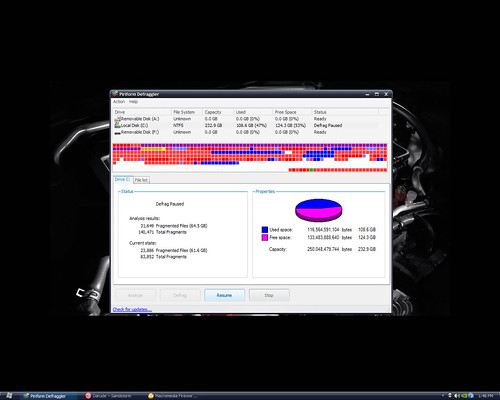
2. Run a Disk Cleanup and Defragment

Disk Cleanup and Defragment


As with running an antivirus scan, you won't want to have any other programs running when you use these tools. Choose a time when you can be around to click "ok" occasionally. You can find both of these tools by clicking Start, then Performance Information and then Tools. This is different for different versions of Windows, however. A clean, defragmented system runs faster.

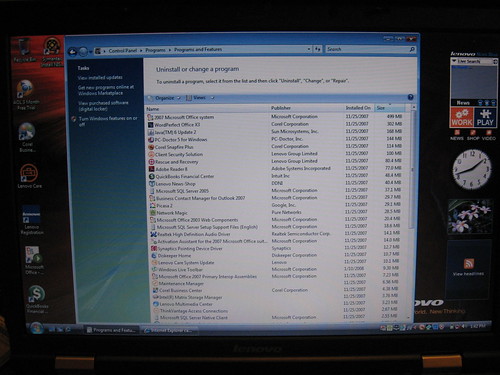
3. Remove Unused Programs


Unused Programs

Open Add and Remove Programs and take a look at what's out there. Chances are, there are tons of software packages you've downloaded and installed that you never use. Remove them using the prompts provided in the Remove Programs box. This frees up disk space and speeds up the computer.

4. Clean Out Old Files

Computer document


Close all running programs and open the My Documents or Documents folder on your desktop. Are there lots of files and documents here you don't need anymore? Delete them. These files are taking up storage space, and full hard drives always run slower.

5. Take Programs Out of the Startup Menu


Computer StartUp Menu

Across the bottom of your Windows screen, there are rows of icons that you can click and instantly start a program. Many programs put themselves here automatically when installed if you don't know how to prevent it. Go to System Configuration in Windows and take unnecessary startup programs out. You'll still be able to access these through Start, All Programs.

6. Check for Possible Disc Errors

Disc Errors 

Occasionally, an error in the disk is the cause of a slow system. Go to My Computer, then right-click Hard Drive and click on properties. Open the Tools tab and go to the Error Checking section. Choose Check Now or Schedule Disk Check and click OK. If you choose Check Now, it will run the scan immediately. Schedule Disk Check allows you to tell it when a convenient time to scan is, so you won't forget later.

7. Restart Computer


After performing each of the steps above, reboot your computer. Some of the steps, such as running an antivirus scan or Disk Cleanup and Defragmentation will prompt you to do so. Rebooting allows the computer to reset itself and initiate any changes you've made.
It's a good idea to use your Task Scheduler or other reminder to run antivirus scans, Disk Cleanups, Disk Defragmentation and other computer maintenance regularly.

Saturday

Android 4.1 Vs Windows Phone 8 Vs iOS 6

The three players of the mobile operating system platform made some hot releases this year, Google upgraded to the Android 4.1 Jelly Bean around July, Apple came out with its iOS 6 versions in September, and Microsoft brought to us the Window Phone 8 in October. Apple announced the iOS 6 without a device; Google packed the Jelly Bean with its Nexus 7 while Microsoft came with its new platform with its own Surface tablet that runs on the Windows RT.


phones

The three platforms are all finally out, and most users have been having a feel of the experience. Android is even upgrading the Jelly Bean to 4.2.

What communizes the three platforms is the location service, and it seems this is really where the battle lies.


Location and Maps


The Google Map is quite older than the Map service offered by the two other platforms, most of them even integrate the Google Map as the default location app before they began their own production of the service. On the Jelly Bean 4.1, Google introduced the Google Now, which bridges the map and other Google services together. The Google Now serves as a real time personal assistance, monitors your lifestyle, and alert you whenever it’s time for you to get something done, a meeting with you board, or time to go to work, the Google Now integrates the map service by providing you information about "weather forecast," as well as "routing and re-routing".

As the iOS 6 was coming out, analyst observed that the Google Map has been ejected out of Apple's platform, it was then Apple announced its own Map service. The Map came with the iPhone 5 and unfortunately, it was a flaw and this led into Apple apologizing to its customers for the failure of the Apple Map and recommending other Map services such as Google Map, Bing etc as alternatives to its new and loyal customers.

For the Windows 8, Microsoft adopts the Nokia Maps to help its users for the location service. There is also the Windows app for non Nokia devices, which makes use of Nokia Maps for calculated routes and geocoding as well as traffic information. The Nokia Map UI and POI database was developed by Microsoft developers.

As at the moment, the Google Map with its Google Now provides the best Map service.


Service Integration

Google has a lot of services it offers, and it seems they are becoming overlap. The Google+ is lacking, analysts thinks Google Talk, Messenger and Google Voice should be integrated. In the Android 4.1, Google Now bridges a lot of Google services into one. The new notification shade makes it unnecessary for you to open notifications without visiting apps.

The only integration you get on the iOS 6 is for social networks like Facebook and Passbook, the iOS doesn't really have much service interference. Safari could be synched through iCloud, but Apple has not given options to connect many service to one. As an iOS owner, you have to launch an app to access a service.

Social networks finds favor in integration with the Windows Phone 8, the NFC also makes connectivity with different devices easy. A concept called Native Code on Microsoft platforms integrates the Window 8 with the Windows Phone 8; it gives you an opportunity to access your Windows 8 from your Window Phone 8 device.

If you own more than one device for Android, iOS or Windows, you are able to easily link those accounts with your ID, but Microsoft seems to offer a very good and fair integration with its Windows 8. Google has a lot of product, and almost all of them are linked together, Google seems to also take the lead in this area.


User Interface

In terms of user interface, the iOS6seems to maintain the stagnant face it previously had with icons. The widget on the Android was resized and on the Windows Phone 8, you are able to customize fascinating Live tiles. Not that Microsoft completely transformed the layout of the Windows Phone 7.5, but it is very flexible and you arrange things the way you want.

Considering the most open to homescreen construction, Jelly Bean offer the best, apart from allowed folder creation, it allows numerous widgets, you can make your UI to be completely unique. Though the iOS6added one more column to its screen real estate, with new space for apps on the homescreen, and can equally be placed into folders, still it look so much unfriendly to users who will like make multiple screen and folders for app organizing.

For the interface customization, the Windows Phone 8 seems to come first according to my rating.

Conclusion

Critically observing the three platforms, the Android Jelly Bean takes its place as the best to offer the Map service, the Google now make its service integration fascinating, and a more flexible user interface, but not as much as it is offered by the Windows Phone 8, the iOS 6 is a more cool platform, but the boring stagnant UI has not been transformed.

Different people with its preference of features on each product, I hereby write a disclaimer that this article is never written to condemn or to elevate a platform more than the other.

Do you find this write up informative? Feel free to share your view.