Tuesday

How to Enable or disable Google Chrome Material Design on Windows PC

Some people might feel a need to want to change back to former design on their Chrome by disabling the recent Chrome's Material design, this post is here to show us how to go about it.
If you use Google Chrome as your major browser, you must have received an update and become aware that there's now a NEW design on the browser known as Google's MATERIAL DESIGN.

The latest version of Chrome is CHROME 53, and it's basically appearing uniquely different based on Material design from and by Google.


But, What is Material Design, on Google Chrome?

For Chrome browser, Material design means Chrome 53’s user interface is flat, and some icons have changed. For some time now, several companies, Microsoft most notably, had brought a complete visual refresh to normal classic Chrome layout via their MicroSoft Edge browser if you look very very well.
Material design on CHROME includes changes like introduction of a Dark Incognito theme, sharp edges of tabs, hamburger menu changes to 3 dots, redesigned pages for Downloads & Extensions, etc. It offers a mouse optimized layout – and the Hybrid layout offers a more spaced-out experience suitable for touch devices. The changes may not be obvious to the eye, but rest assured, they are there.

But fact remains that not everybody may like this, you and some other people may already be used to the previous look of your Chrome, use the steps below:

How to Enable or disable Google Chrome Material Design on Windows PC

To change or revert back to your original design on Chrome 53, in your address Bar type chrome://flags into the address bar.

2. After that, Press Ctrl+F, type “Material Design”, the press Enter.
3. Now, you will see a setting Material Design in the browser’s top chrome. Change it from Default to Non-Material, restart the web browser and everything should be back to normal. There’s also an option that says Material Hybrid – it is meant for touch-enabled layout.

For those who love the Material design already, perhaps you'd prefer to see it throughout the entire web browser, not just some aspects of the user interface. You can achieve that.

Still on same settings:


Below the option in YELLOW, “Material Design in the browser’s top chrome”, there’s another option known as “Material Design in the rest of the browser’s native UI”. Click Enable and it should extend the –top-chrome-md setting to secondary user interface.

More flexible features can also be likely unlocked when you go to the  chrome://flags Settings. Note however, that tampering with that it may cause issues with your Chrome browser.

Monday

Infinix HOT 4 (X557) - Unboxing Photos and First Impressions

Infinix Hot 4 as we said few weeks back had been launched into the market, around last week we got a review unit to show to you guys, so we all can see what the device is made of. Like we had said in our previous post, we need have to ring a bell that overtime INFINIX HOT series had done remarkable improvements, I can't say much about Hot 3 but Hot 4 is definitely worth it.

Before we show you the photos of the device, let's have a quick look at the specifications of the smartphone.


Infinix Hot 4 - Quick Specs

  • Model : Hot 4, Infinix X557
  • Display: 5.5inch (720 x 1280 px HD display)
  • RAM: 2GB RAM
  • Camera: 8MP rear, 5MP front camera
  • Internal Memory: 16GB ROM, support for upto 32GB micro SD
  • CPU: MT6580 (1.3GHz - Quad Core)
  • OS: XOS (Based on Android 6 Marshmallow)
  • Battery: 4,000mAh
  • SIM: Dual SIM micro
  • Extras: Finger-print ID, 
  • Connection: WiFi, HotSpot, Bluetooth 4.0

Here are the Unboxing Photos of the Infinix Hot 4 smartphone:


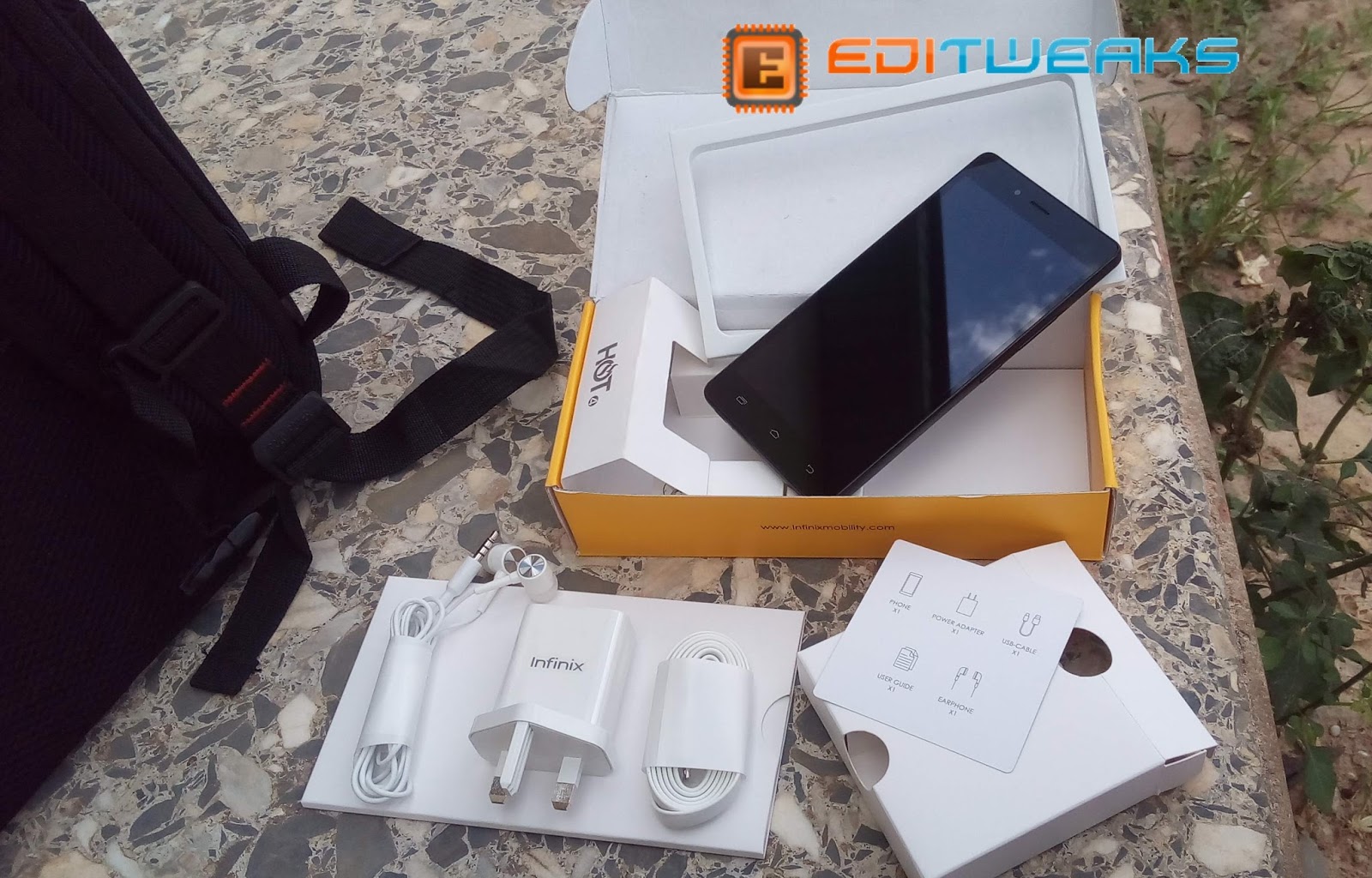
Hot 4 arrived with a differently shaped pack, a rectangular one to be precise, and came with same usual items and accessories:
  • The phone
  • 1x charger head
  • 1x USB cable
  • 1x pair of earphones
  • User manual
As seen below:


The 5.5 inched display device looked pretty neat, although the weight of Hot 4 is NOT so light nor flat, but it was pretty nice to hold. At the top right, there is the 5MP camera, and a tiny red light indicator that I had seen to display only when the battery was low.


The Infinix HOT 4 is clearly the first in the Hot series to feature a finger print scanner, although that feature had first appeared in the Infinix Hot S. Infinix Hot 4 also features a nice 8MP camera right above the scanner with an LED flash at the left.

The back of the black colored model feels very strong and tough too, with a design pattern similar to the first Infinix Hot X507 that debuted 2 years ago.


The right side of the Infinix Hot 4 carries functional buttons, the Volume Up + down keys and the power button. No buttons at the left side.

At the top, you'll find the ear-piece jack, and underneath, you see the charging/USB transfer port.
At the back, after removing the cover, you'll see the device's Dual SIM and Memory card slots, the quality sounding speakers found beneath and featured 4000mAH Non-removable battery.
The battery had been doing great so far.


That's all for now, for those interested in knowing more details about the Hot 4, the device had shown us some really cool things like its 8MP camera abilities (which we are still testing), this is considered as the pros, and of course, it has its cons too, we will come back this week with a full review of the device.

Sunday

Easy Guide to Download 360˚ video from YouTube for PC & Mobile (Mac, Android, iOS)

360 videos had been a huge success since it appeared on YouTube last year, and over time, more 360˚ videos had been uploaded and watched millions of times everyday, but what if you would like to keep or download the video to your PC or smartphone, to watch it anytime with your VR headset? Sure, You can download the 360 video to play the 360 video quality with your VR headset using PC or Mobile (Windows, Mac, Android, iOS).
I assume you already have a VR headset, just follow the steps here below:


Download any 360 video from YouTube for PC

This is the easiest method to download any 360 video from YouTube for PC:
1. Download the 360 video in the highest quality possible via existing YouTube download sites such as www.keepvid.com or Savefrom.Net once you have the MP4 file, you can play it back in a 360˚ Video Player

Where to Download VR Players for your PC:
In case you are looking for where to download a VR player for your PC, the free Kolor Eyes desktop player (for PC & Mac) is one of the best choice for that, although GoPro has acquired Kolor (the French software company who publishes it) so we believe there will be lots of resources for the software to get better and better over time. Go here to get Kolor player
Once you get those, you're good to go and enjoy your 360 video.

Really, it's just a matter of downloading the source file (commonly referred to as the "flattened" video file, or technically known as the "equirectangular" video file) and then playing it back through a dedicated 360 degree video player which knows how to map/wrap/project the equirectangular source file into a sphere for interactive 360˚ playback.


Download any 360 video from YouTube for Mobile (iOS and Android)

This is easy too, and almost same method as for PC.
Download the 360 video in the highest quality possible via existing YouTube download sites such as www.keepvid.com or Savefrom.Net , once you have the MP4 file, you can play it back in a 360˚ Video Player for Android or iOS.
  • VR Players / Apps for Android:
Get the 360 VR player PRO for Android >> Download Here 


  • VR Players /Apps for iOS: 
Jaunt VR >> Free | iTunes

Discovery VR >> Free | iTunes

Within >> Free | iTunes

There are more cool VR players pr Apps for those mobile operating systems which we may detail you in our upcoming posts.
Hope this post was useful and helped you play Youtube 360 videos  on your PC or mobile.

Thursday

How to Unlock a Chromebook with a simple PIN code

"Google now allows users to unlock Chrome OS with a PIN code and this will definitely come handy for touch devices", Google developer François Beaufort wrote.
The initial usual way of authenticating and safeguarding your Chromebook was to pair it with your smartphone to unlock your Chromebook device, but now a new fresh feature is on the test by Google on Chrome OS, this will enable users to be able to unlock their Chromebook with a single PIN.

Google developer, François Beaufort says the "Quick unlock" settings will soon be introduced in the regular Chrome settings page.


Here is an Easy Guide to set up the new function to unlock your Chromebook using just a PIN on Chrome OS:


1. Enable the flag - chrome://flags/#quick-unlock-pin

2. Restart Chrome

3. Head over to the Chrome Material Design settings page to set up your unique PIN for the Lock Screen feature

4. Under the new "Screen Lock" section, set up your unique numeric Lock Screen PIN

5. Finally, lock your screen with [magnifying glass key] + L

6. Now try out your new "Quick unlock" feature and unlock the Chrome OS using your new PIN code.
"This is a good move in the right direction," one user commented on the post. "However, I think that this PIN lock feature should be expanded to also include passwords. So the password is not linked to the Google account but a separate password just for the device."

Wednesday

Download 360 VR Player PRO 1.5.19 Cracked APK | Watch 360 Videos

This is one of the best VR player for Android. With this App you can play and watch 360 videos and Virtual Reality Videos if you have a VR (virtual reality) headset, it works for most Android smartphones running Android Kitkat or later versions.

360 VR Player PRO | Videos

This app plays 360 Videos and Virtual Reality Videos
Other Features of 360 VR Player PRO:

  • use 360 ° degree | panoramic | 3D mode | VR mode.
  • use Touch , use Motion
  • use device gyro sensor to navigate in the video
  • use Cardboard for Virtual Reality videos
  • play and stream videos online
  • use as Video player
  • play one saved 4K HD Video – Very High Resolution
  • share with friends

Note: Be patient VR takes time to load because of your internet connection.

How to install 360 VR Player PRO
  • Save the downloaded .apk on your android phone’s SD card
  • Run and install it
  • That’s it, Enjoy! :)

360 VR Player PRO Screenshots


Where to Download >>  GO TO DOWNLOAD 360 VR PLAYER

Tuesday

Infinix HOT 3 vs HOT 4 - The Specs Comparison

Today we will be comparing two Infinix smartphones in the HOT series, the Infinix HOT 3 and its new successor, HOT 4.
Before that, let's have a quick look back on these Infinix Hot series, starting from the very first Infinix Hot (X507) which smashed the market with whooping cheap price and lots of  sales, we can notice one thing as time went on, there were improvements in each successor.
Right now, it seems Infinix Hot 3 is still getting some good amount of attention while the Hot 4 is already available in the market, this comparison post may help you discover what the devices are made of, hence you can be able to choose:

Infinix Hot 3 vs Hot 4 comparison

Specs Comparison - Infinix HOT 3 VS HOT 4


Specs HOT 4 X557 X554 HOT 3
Camera 8 + 5MP Front flash 8+2 MP, Selfie with soft flash
Memory 16 GB ROM + 2GB RAM 16+1 / 16+2
Battery 4000mah + Fast charge + OTG 3000mAh + OTG
Processor Quad-core cortex 1.3GHz Quad core Mediatek 1.3Ghz
Screen size 5.5'HD 5.5'' inch HD full lamination
OS Android 6.0 Lolipop 5.1
UI XOS XUI
Sound DNC + Smart voice Dual mic cancelling noise for clear conversation , anti sound break , RNS technology
Colors Red, blue, champagne, green & black Black , red , Blue , white
Voice Smart voice Camera voice command
Security Finger print sensor
Network 4G LTE, 2G/3G 3G


In my opinion, the Infinix HOT 4 looks pretty better as a choice, a review of the device will likely come up in our subsequent posts.

Thursday

Infinix Hot 4 (X557) Released - Check out the Specs and Price

Infinix Hot 4 (X557) had been released and now available in the market for interested buyers who would like to experience an improvement in this successor. The smartphone carries similar design to the previous model (i.e Infinix Hot 3) but this time, packs better battery juice, finger print sensor, and a recent Android OS (Marshmallow) that is dressed by its brand new Infinix's UI (the OSX).

Something else that seem quite surprising, is to see how frequently this Infinix Brand keeps pouring out new models of their variants almost every 3 months. It wasn't up to a month the Infinix Hot S debuted.


Anyways, before we may come back with later review of the Infinix Hot 4, we have here, a quick Specification of the Infinix Hot 4 with the price.

Infinix Hot 4 - Quick Specs

  • Model : Hot 4, Infinix X557
  • Display: 5.5inch (720 x 1280 px)
  • RAM: 2GB RAM
  • Camera: 8MP rear, 5MP front camera
  • Internal Memory: 16GB ROM, 32GB micro SD
  • CPU: MT6580 (1.3GHz - Quad Core)
  • OS: XOS (Based on Android 6 Marshmallow)
  • Battery: 4,000mAh
  • SIM: Dual SIM micro
  • Extras: Finger-print ID, 
  • Connection: WiFi, HotSpot, Bluetooth 4.0

The new Infinix Hot 4 is here for price tag of ₦37,000, although there wear no teasers, pre-launch, no announcements or any usual manner of the Infinix Brand releasing this smartphones but it's already Available for you, if you're interested in getting it. >> BUY NOW - Click Here to View Price Offers

Sunday

Voicemail finally comes to Whatsapp for Android and iOS. Here is how to use it.

While the new that Whatsapp is ending support for Blackberry, Nokia and old Android/iOS devices come December, the Facebook-owned company is forging ahead with the development of the IM app for the devices still supported.

What I am trying to tell you essentially is that there has been an update for Whatsapp for Android and iOS, and while both have different version numbers (version 2.16.229 for Android and version 2.16.8 for iOS), the new update for both platforms comes with a new feature that is overdue; Voicemail.


When Whatsapp added the Voice Call feature for its app on all mobile platforms in 2015, there was a lot of excitement because the feature wasn't a common one in the mobile app world. Though the feature has been useful, there are times when you feel that it should be improved upon, particularly because the Voice Call feature is only useful when the second party is online.

That is exactly what Voicemail is coming to fix in Whatsapp. Thanks to it, you can now leave a voice message when a Whatsapp call to a user is not picked or answered, as opposed to the norm of leaving a text message in the same situation.

How to use the Whatsapp Voicemail Feature


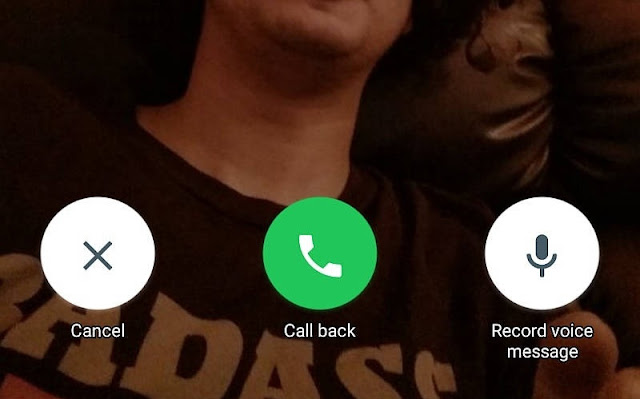
When your Whatsapp call to a user is not answered, you will be presented with three options: Voice Messages, Call Again and Cancel. You already know what the last two options are used for, it's the first one we're concerned about here.


To utilise the Voicemail feature after a Whatsapp call is not answered;
  • Select the Voice Messages option from the three options.
  • Tap and hold the Voice Message button to start recording your message (voicemail).
  • When you're done recording your message, release the Voice Button button to send it, or swipe to the left to trash it and record another.

The message you record would be sent to the user as a voice note (VN). Considering the series of new features that are being released to Whatsapp almost weekly, the Whatsapp Video Call feature that has been in the rumour mills for some time doesn't seem to be far from us anymore.

Full Guide on creating a bootable MacOS Sierra Beta installer drive

All new software and software updates from  Apple are dished out to users through the App Store, and when the software to be downloaded is heavy, it can be a pain in the neck going through the usual process.

The situation gets even worse if you are managing multiple Macs and you have to install the software individually on each of them. You can solve this problem by making a bootable external hard drive for the purpose of installing the Mac Operating System (or any other software of your choice) on your Mac.


The next Mac OS to be released is Sierra, and there is currently a public beta version of the upcoming software that you can install to your Mac PC. So in this guide, I am going to show you how to make a bootable installer drive for the macOS Sierra public beta that's currently available, and we'll update the tutorial when the final version is released. If you need to create bootable drives for other software, shoot us a comment and we'll look into creating a tutorial for that.

Steps to creating a bootable drive for the macOS Sierra public beta


Download the beta installer for MacOS Sierra


Before you can download the Sierra beta installer, you have to be eligible to download the Sierra beta software itself. To do this, sign up for the Apple Beta Software Program, go to the Mac App Store, and download the installer.

After downloading the installer, it can be located in the Applications folder on your Mac. If you've downloaded the installer and installed the Sierra beta, you will notice that the installer can't be located again in the Applications folder. It is an automated process that deletes the installer after the software has been installed.

Because the installer is needed to create the bootable drive, you have to download it again. You can do this by opening the App Store on your Mac and clicking on the Purchased tab. Here the beta installer is included in the list of apps you've purchased. Click on Download and the installer will be downloaded once again to the Applications folder. To preventing the installer from being deleted again, quit it if it launches itself after the download is complete.


Prepare your External Drive


Get the external drive you are going to use to create the bootable drive installer. A hard drive as well as a USB Flash drive can be used. The beta installer takes around 5GB of storage, so you may want to make sure the drive you are using has that amount of free capacity.

The last step in preparing the drive is to change the name to Untitled. Also note that the storage drive you use will be formatted during the process, so try to copy important files to another storage location.

Create the Bootable drive installer

The tool used in this tutorial is Terminal. If you don't want to use it, you can use Install Disk Creator. It is just as good as Terminal. It can be gotten here.


Here's how to go about it:
  1. Connect the external drive to your PC. It is important that you rename the drive to Untitled or you could get confused in this tutorial. The name can be changed after creating the bootable installer drive.
  2. Launch the Terminal app. This can be done by going to Applications >> Utilities >> Terminal.app
  3. Copy this command >> sudo /Applications/Install\ macOS\ Sierra\ Public\ Beta.app/Contents/ Resources/createinstallmedia -- volume /Volumes/Untitled -- applicationpath /Applications/ Install\ macOS\ Sierra\ Public\ Beta.app and paste it into the command prompt in Terminal.

  4. At this point, you will be required to enter a password, which is your user password. Type it in and click on Return.
  5. You will be notified by the app that the drive will be erased. Type Y to confirm and click on Return to continue.
  6. Terminal will start to erase the connected drive. When the process is complete, you will be asked if you want to use the drive for Time Machine. Click Don't Use.
  7. Terminal will now start copying the beta installer to the drive. Allow the process to complete.
  8. When it's complete, you will see a Copy complete and Done notice. You can now exit the Terminal app. You have just created a bootable macOS Sierra Installer drive.
  9.  
Now that you have created the bootable drive, you may want to use it to install the Sierra beta software on other Macs. Follow these steps to do that.

How to boot a Mac from the bootable installer drive

  1. Connect the drive to your Mac.
  2. If the Mac is off, power it on. If it's on, restart it. While it boots, press and hold the Option key on the keyboard.
  3. Instead of booting straight to your default home screen, the Mac will display the Startup Manager which shows the boot drives available for the system. Click on the bootable drive you just created and click Return. Ignore the Choose Network parameter.
  4. The OS X Utilities window will be displayed. If you want to keep your data from the existing OS while installing the Sierra beta, select Install OS X. If you don't want to keep your old data, head over to Disk Utility and format the internal hard drive, before selecting Install OS X.

Congratulations. You have just installed macOS Sierra beta using a bootable installer drive.


Friday

Introducing Google Play Family Library: Share purchased content with friends and family conveniently

A new feature has been added to the Google Play Store, and it's called Google Play Family Library. It is a feature that allows you to share paid content (apps, books, video, audio, games, etc) purchased on the Google Play Store with family members without having to re-purchase it, and easily at that. The feature was supposed to be launched in July, and considering that the App Store for iOS already had a similar function since about two years ago, it's about time it got to Android users.

So how do I create my own Family Library?
Don't worry, in this article, I will guide you thoroughly on the steps you need to take to create your own Google Play Store Family Library and start sharing your purchased content to loved ones to use for free. Read on.


STEPS

1. Sign Up


As you should have guessed already, you need to have a Gmail account to even have access to this feature at all. Once you are signed in to your Gmail account, you can sign up for the Family Library in two ways:
  • Through the Google Play Store app on your Android device. Open the app, go to Account >> Family, and tap on Sign Up.
  • You can also register using a web-based browser. Head over here to get started.

2. Add Payment Method


You have to add a credit card with which payment for all paid Google Play content purchased by any beneficiary in your Family Library would be made. For every purchase made, you will get an e-mail with details about who is buying what. Don't worry, you can set limits so that indiscriminate purchases are not made with your card. More on that later in this article.

3. Add content to the Family Library


If you've been making purchases on the Google Play Store prior to this time, you can choose to add those paid content to the Family Library so that other family members can download and use them for free. You may not want to share everything you've bought with the family (you know, teenagers-only stuff, or things that kid must not see!), so select I'll add them later, one by one.


However, you could be the type gunning for a non-existent Top Google Play Spender of the Year award, and have purchased a lot of stuff that you can't start adding them one by one. Simply choose Add all eligible purchased items and click on Proceed.

4. Add your desired Family Members


After sorting out what you want to share and what you want to keep private, it's now time to add the loved ones to share your purchased content with. You can only add individuals who have a Gmail account, are members of your family, live in the same country with you and are of age 13 years or older. You can add up to five beneficiaries.

To do this, type the name of the contact in the Add Recipients text field. A list of your frequent contacts is shown, and when you type names in the text field, suggestions will be shown so you can add contacts faster.
The contacts won't be added straight away; invitations would be sent to their e-mail addresses, and when they accept you will be notified via e-mail.


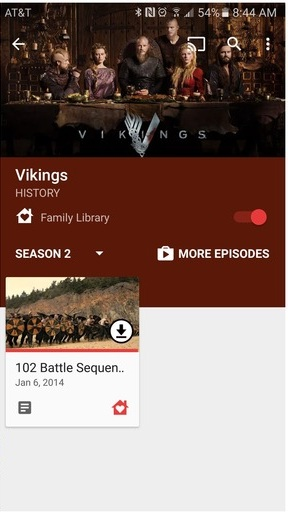
Each family member that accepts the invites will now have a new FAMILY LIBRARY section under My Apps and Games where they can see all the content you have added, and from there they can download them.


After that, every paid content that can be added to the Family Library will have its icon somewhere near their title, so you know whether you want to share it with the family or keep it to yourself.


4. Tweak your Settings

Now that you've added your family members to your Family Library, the next thing to worry about is your credit card and your privacy. Your credit card because everyone in the Family Library can make purchases on the Google Play Store with your credit card, even if they don't have access to its pass key. Your privacy because everything you buy will be made available to them all for free.

Thankfully, Family Library has a Settings menu where you can apply restrictions and control the content that the other members get, and the purchases they can make with your credit card. One thing to note is that each family member can still make purchases with their own credit card, so if you have someone who can conveniently purchase stuff on their own, kindly ask them to refrain from making purchases with your card.

To change all these, locate the Family Manager Settings menu. One of the settings you can customise is:
  • Require your approval before purchases are made. You will have to manually confirm approval when a family member wishes to make a purchase with your credit card. This setting can be customised for every individual in the Library, or applied generally. Useful if you have a shopaholic in the house.

  • Another useful one is

  •  Delete a family member. Has that family member been behaving naughtily? Simply delete him/her; it only takes seconds and some screen taps. Or do you have a grouse with that other adult in the family? You can take revenge without physical damages.
Though you can share a lot of things and virtually all paid content, there are still some intricate things you can't share in the Family Library.

Things you can share

All paid
  • Apps.
  • Games.
  • Books.
  • TV Shows. and
  • Individual Movies/ Movie Bundles.

Things you can't share

  • In-app purchases.
  • In-app achievements and progress.
  • Individual movies in Movie bundles. If you purchase a movie bundle, you can only share the entire bundle; you cannot pick individual movies from the bundle to share.
If you're using Google Play Music and Play Books applications on iOS, you can also partake in the family library.

What do you think about the new Family Library feature in Google Play? Air your views.